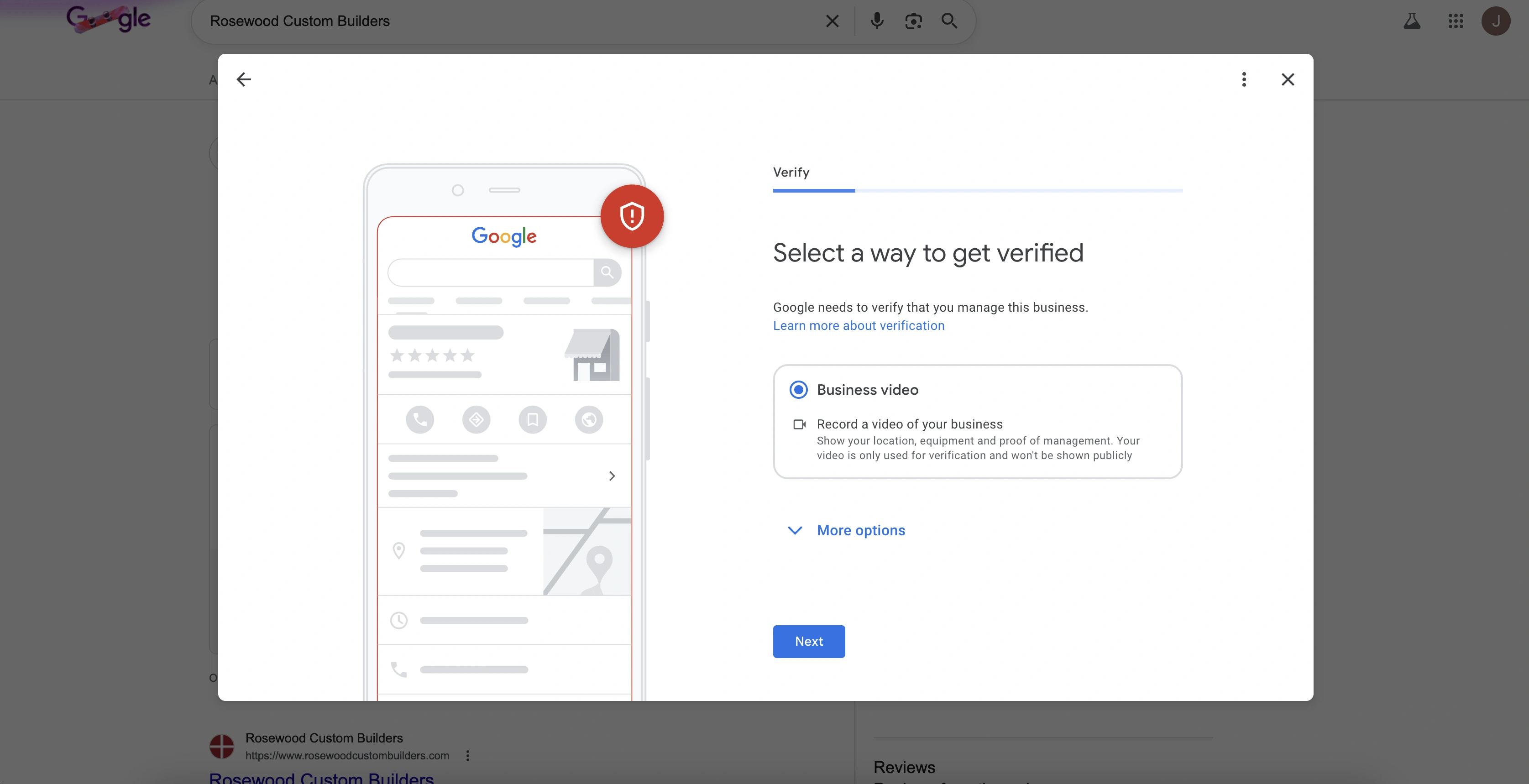
How to Get Your Google Business Profile Verified
February 12, 2026
If your Google Business Profile verification was rejected, you’re not alone. The video verification process regularly trips up small business owners. In most cases, the issue is tied to a handful of specific signals Google expects to see, and once you know what those are, you can submit a stronger video and avoid another rejection.
Whether you're verifying for the first time or resubmitting after a rejection, this guide will walk you through exactly what to include-and what to avoid-so you can get verified on your first try.
Why Video Verification Matters
Google uses video verification to confirm you're actually operating a legitimate business at the address you've listed. This protects customers from fake listings and gives your business credibility in search results.
A verified Google Business Profile means you show up in local search results, Google Maps, and can collect reviews. If you're not verified, you're basically invisible to customers searching for services like yours.
What Google Wants to See
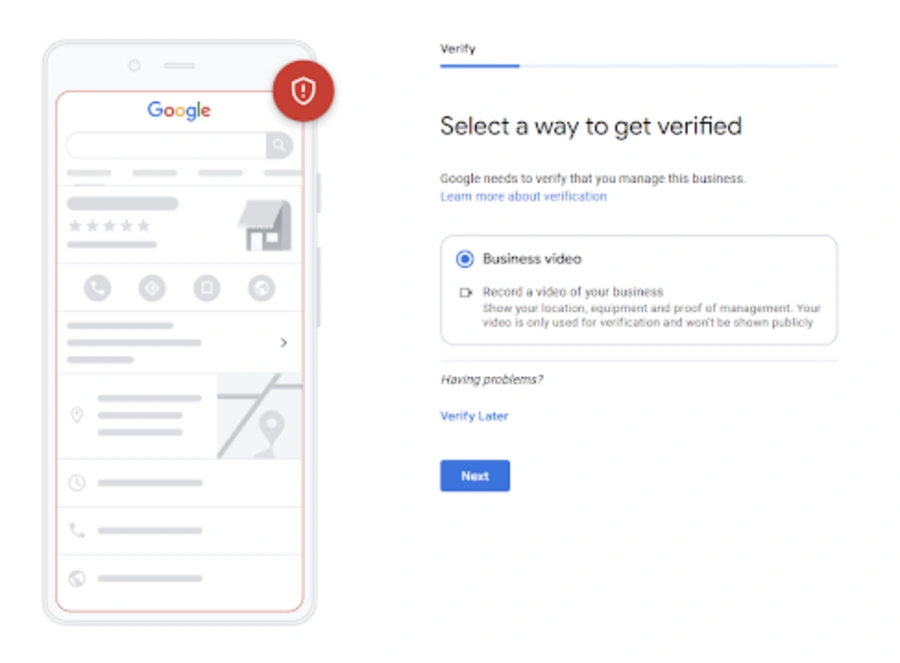
Google is looking for two things: proof you operate at this location, and proof you're authorized to manage this business. Here's how to show both in your video.
1. Record in One Continuous Take
Your video needs to be unedited with no breaks or cuts. Just hit record on your phone and keep it rolling for 1-2 minutes. That's it.
2. Start Outside Your Location
Begin your video outside showing your physical address. This gives Google the context they need to confirm your location.
What to show:
- Street signs with your street name and city
- Your building number or mailbox showing your address
- Nearby landmarks or neighboring businesses
- A quick pan of the surrounding area
Narrate what you're showing: "Here in Austin, this is the street sign for Main Street. This is our building at 123 Main Street."
3. Prove You Have Access
Next, show you actually work there by demonstrating access to the space.
Best ways to do this:
- Unlock the front door with your key and walk inside
- Use a keycard or code to enter an employee-only area
- Open a cash register or access your point-of-sale system
- Enter a storage room, office, or staff-only space
This doesn't need to be elaborate-just show you have the access an employee or owner would have.
4. Show Your Work Setup
Once you're inside, briefly show your workspace and tools. This proves you're actually operating a business here, not just renting a mailbox.
Good things to include:
- Your desk or workstation with your business system open on the computer
- Equipment you use to run your business
- Products you sell or materials you use for services
- Business cards, branded materials, or marketing items
- Official documents like your business license or utility bill in the business name
Keep this section brief-just pan across 2-3 items that clearly show this is a working business location.
What Not to Include
Certain things will get your video rejected immediately. Avoid these:
Don't show faces. Google's automated systems flag videos with people's faces for privacy reasons. Keep yourself and any employees off camera.
Don't include sensitive information. No bank account numbers, tax IDs, personal identification, or payment information should be visible.
Don't narrate excessively. Keep your narration short and factual. "This is our office entrance. Here's our workspace. These are the tools we use." You're giving a brief tour, not recording a documentary.
Your Video Recording Checklist
Here's the complete sequence that works:
- Start outside - Show street sign, building number, and nearby landmarks
- Pan the area - Quick view of the surrounding neighborhood
- Unlock and enter - Show yourself unlocking the door or accessing the space
- Show your workspace - Pan across your desk, computer, or primary work area
- Display official items - Show 2-3 things like business license, branded materials, or equipment
- Keep it brief - Total video should be 1-2 minutes
Quick Tips for Success
- Record during daylight hours for better video quality
- Hold your phone steady-shaky footage is harder for Google to verify
- Make sure street signs and addresses are clearly visible and in focus
- Narrate briefly what you're showing so Google's reviewers understand the context
- If working from home, emphasize business documents and equipment rather than storefront signage
Final Thoughts
Video verification feels awkward the first time, but it's just Google making sure your business is legitimate. Follow this outline, avoid the common mistakes, and you'll get verified quickly.
Once you're verified, you can start collecting reviews, showing up in local search results, and actually getting found by customers searching for what you offer. That's the whole point of having a Google Business Profile-and verification is what makes it all work.
Common Rejection Reasons (And How to Fix Them)
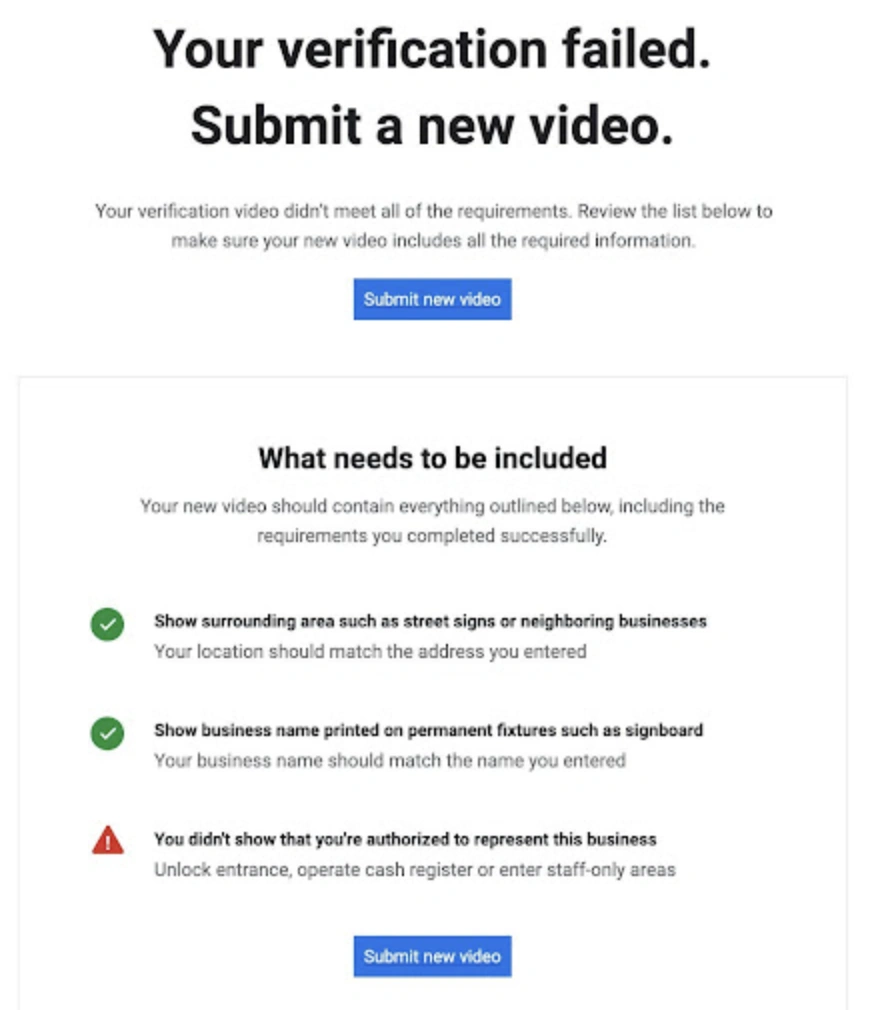
If your video gets rejected, Google usually tells you why. Here are the most common issues and how to fix them:
"Business name not shown on storefront" Solution: Show your business name on a permanent sign, window decal, or wall. If you work from home, show business cards or documents with your business name clearly visible.
"No view of surrounding area" Solution: Include more context at the beginning-street signs, neighboring buildings, or recognizable landmarks that confirm your location.
"You didn't show that you're authorized to represent this business" Solution: Show yourself unlocking the door, accessing employee-only areas, or operating business equipment. Google needs to see you have legitimate access.
"Location is different from Business Profile address" Solution: Make sure your video is actually recorded at the address listed in your profile. The street signs and building number need to match exactly.
"Video didn't show your business" Solution: Include more interior footage showing your workspace, equipment, and business operations. Google needs to see it's an active business location.
"Video too short or too long" Solution: Your video must be between 30 seconds and 2 minutes. If it's too short, add more context showing your location and workspace. If it's too long, trim it down to the essentials-you don't need to show everything, just enough to verify your business.
"Poor video quality or blurry footage" Solution: Record during daylight hours for better lighting. Hold your phone steady-use both hands or prop it against something if needed. Make sure business names, street signs, and addresses are in focus. If your first video was too dark or shaky, try again with better lighting and a steadier camera.
"Showing people's faces" Solution: This is an instant rejection for privacy reasons. Keep yourself and any employees completely off camera. You can show hands unlocking doors or operating equipment, but no faces.
"Video upload keeps failing" Solution: This usually means connection issues or file size problems. Try these fixes:
- Use a strong WiFi connection (not switching between WiFi and cellular)
- Keep your video under 90 seconds to reduce file size
- Clear any previous failed upload attempts from your phone (in Business Profile Settings > Advanced Settings)
- Try uploading on a different device
- If it still won't upload after 3+ attempts, contact Google support to request a live video call verification instead
"Business name/address/phone doesn't match across listings" Solution: Your business information must be consistent across your Google Business Profile, website, and any other online listings. Check that your business name doesn't include extra keywords or promotional language that isn't on your actual signage. Make sure your address is formatted exactly the same everywhere.
Questions About Your Website, SEO, or AI Search?
Whether you're ready to get started or just want to learn more about how we can help your business get found online, we're here to answer your questions.
Whether you're ready to get started or just want to learn more about how we can help your business get found online, we're here to answer your questions.